Live Mode
Control your Sims, manage needs, form relationships, develop skills, and explore everyday activities.
A creative home for Sims 4 builders, storytellers & dreamers.
THE WANDERING WHIMS BEGINNER'S LIBRARY
Every great Sim story begins with learning how to navigate the world. Discover the controls, menus, and essential tools that make playing The Sims 4 easier.
✧ BASE GAME ONLY · PC BEGINNER GUIDE ✧
This guide focuses on Windows PC keyboard and mouse controls. Mac and console controls can differ. Game menus may also change with updates.
PART ONE
The Sims 4 has three main environments that allow you to create characters, build homes, and experience everyday life.
Control your Sims, manage needs, form relationships, develop skills, and explore everyday activities.
Create household members, customize appearances, and select traits and aspirations.
Construct rooms, furnish homes, decorate interiors, and design outdoor spaces.
Furniture and object purchasing are integrated into Build Mode, which is often called Build/Buy.
PART TWO
The Main Menu is the starting point for accessing your games and settings.
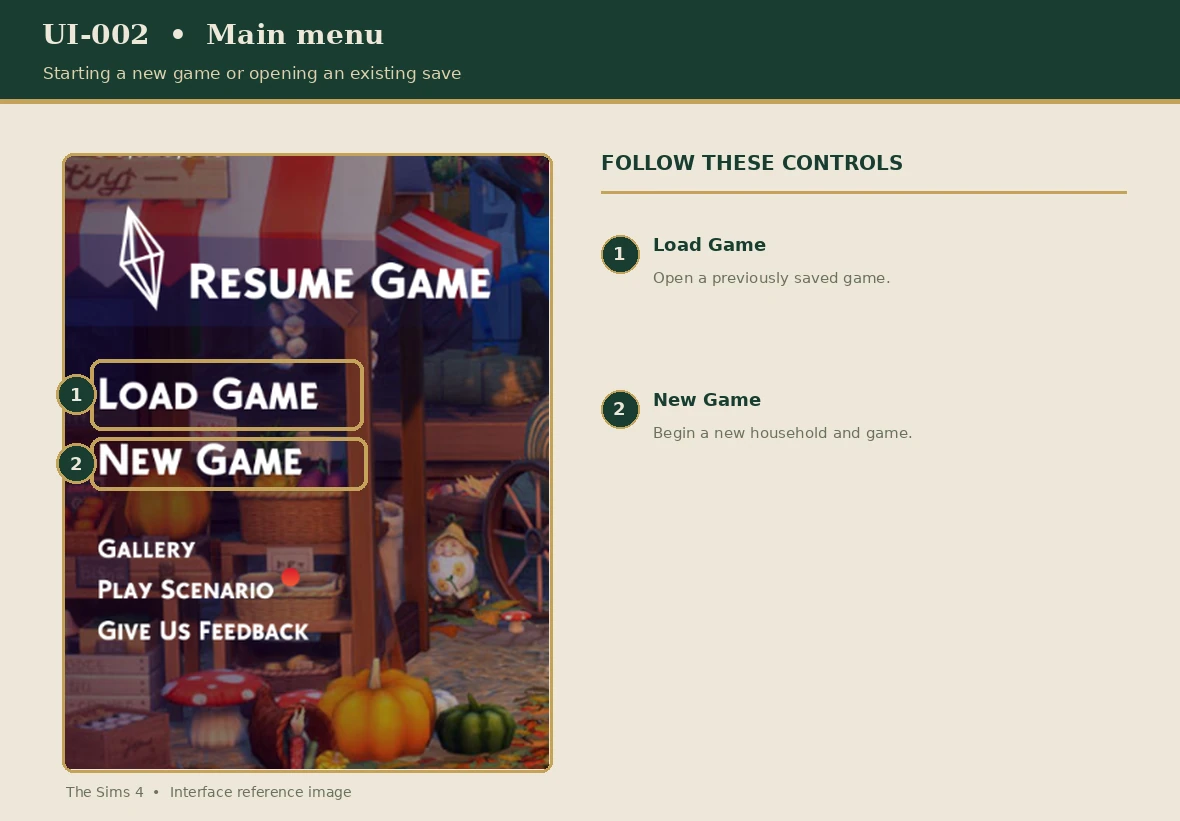
Consider using separate save files for building experiments, ordinary gameplay, and longer challenges. This can make your projects easier to manage.
PART THREE
Live Mode is where your Sims go about their daily lives.
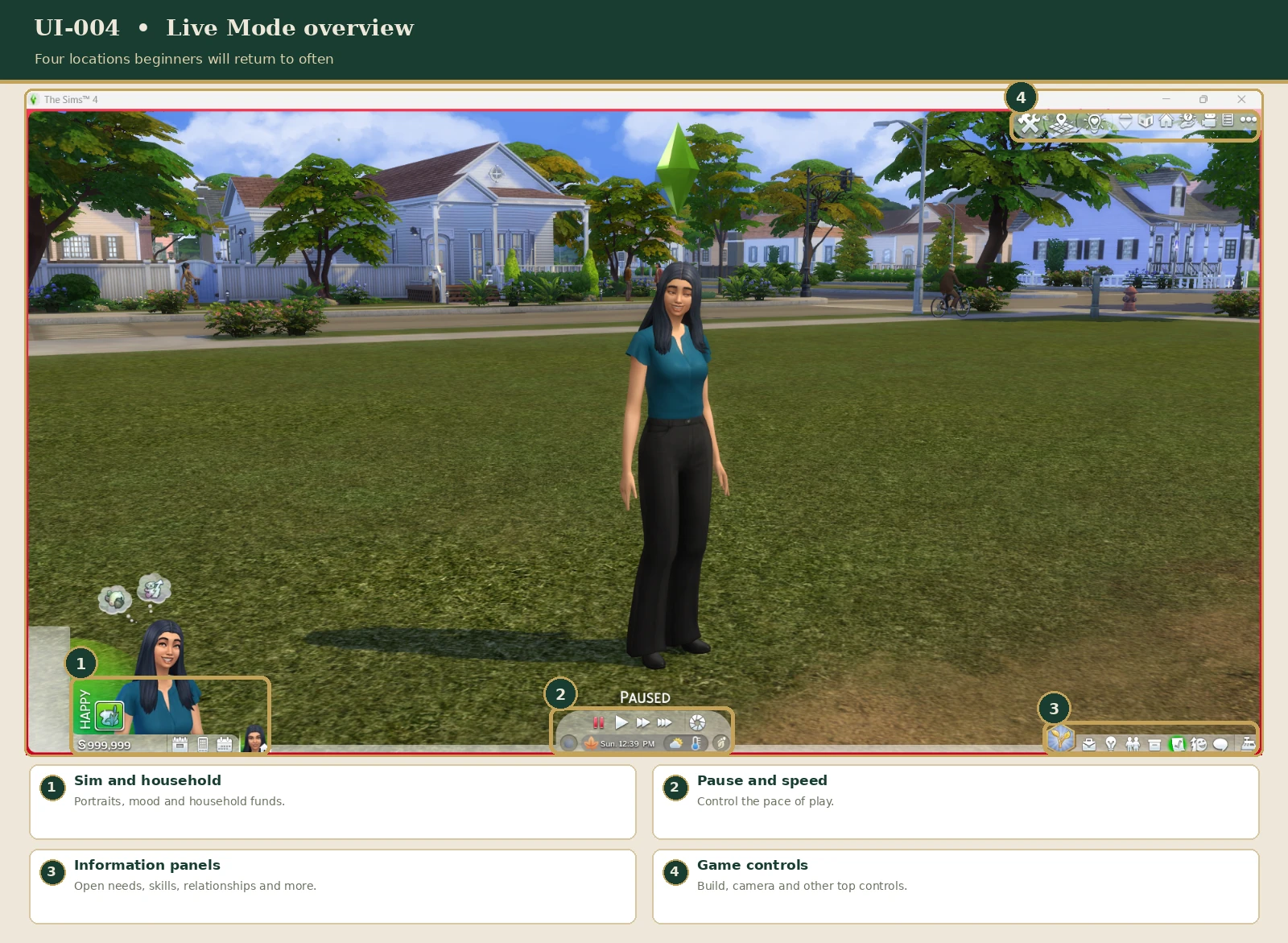
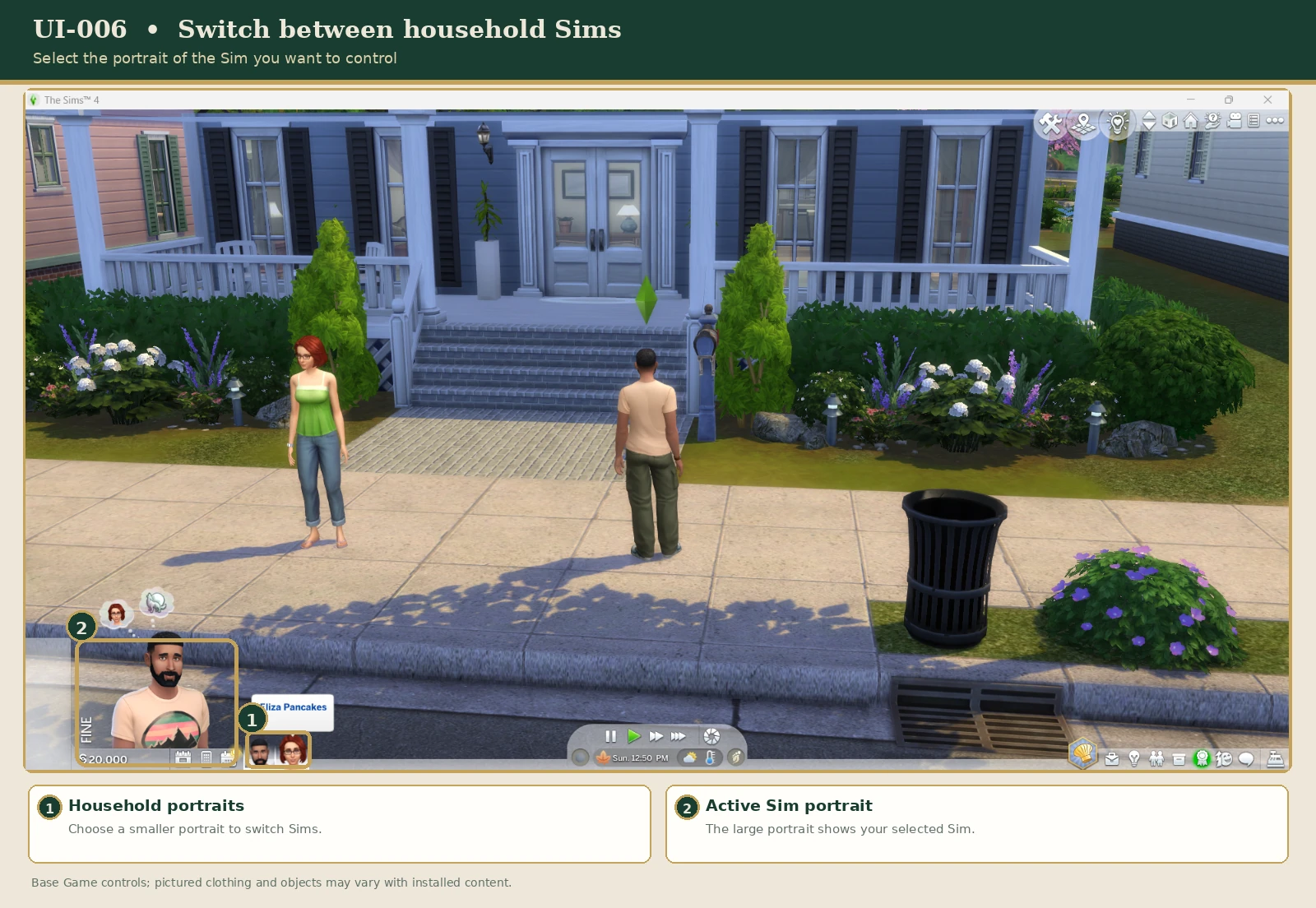
The familiar desktop layout includes several important interface areas. Exact positions may vary with updates.
Household portraits, your active Sim, and emotional information.
Pause, normal speed, and faster game-speed controls.
Panels for needs, relationships, skills, careers, aspirations, and other Sim information.
Menus, notifications, and additional game controls.
Select different household portraits to switch between controllable Sims. Open the information panels to learn more about your active Sim.
PART FOUR
Most activities begin by clicking on a Sim, object, or location.
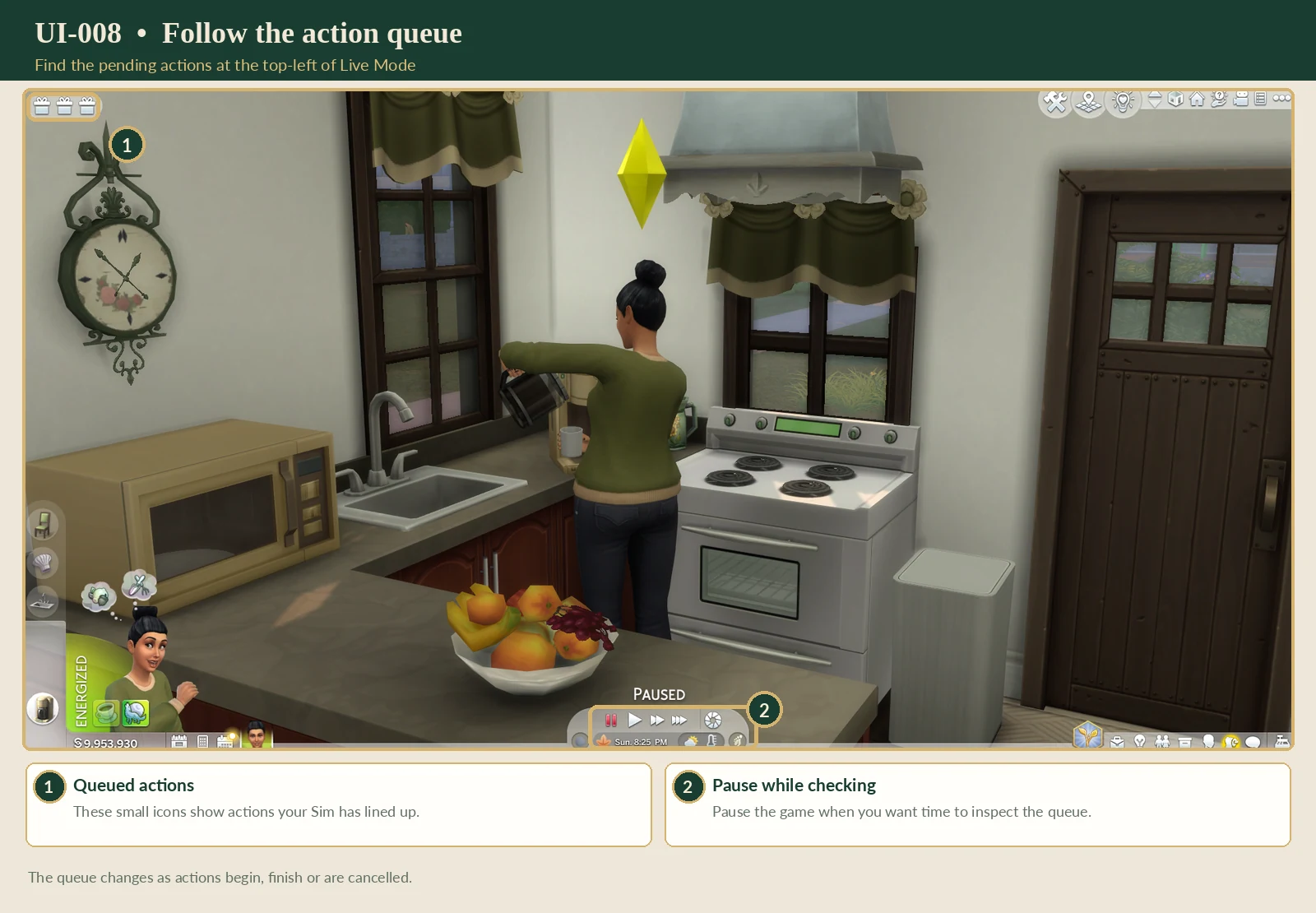
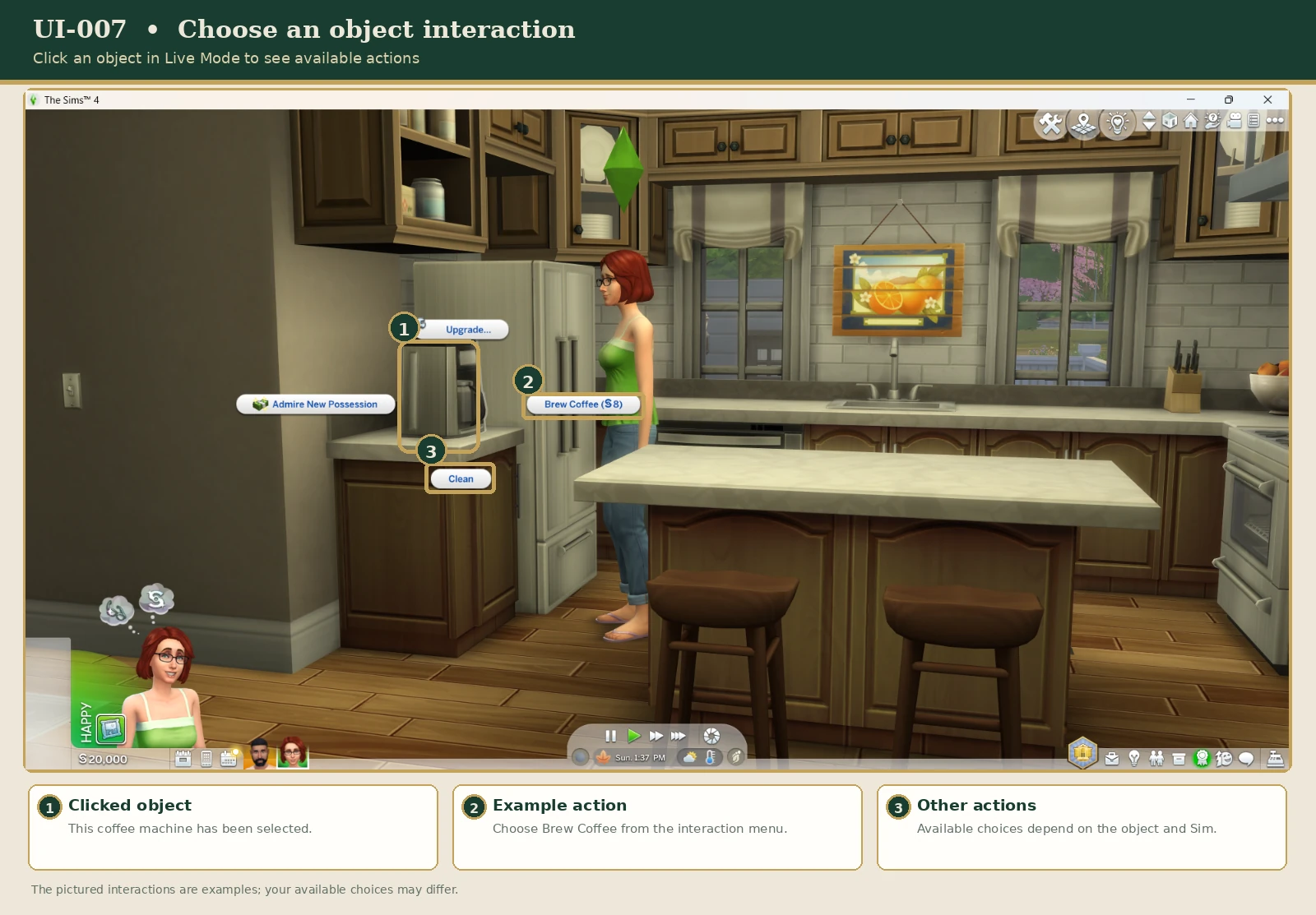
For example, selecting a refrigerator offers food-related interactions. Selecting another Sim provides social interaction options.
Sims may also perform some actions independently when autonomy is enabled. Autonomy settings are available through Game Options.
Pause the game while deciding what to do next. This is especially helpful when managing more than one Sim.
PART FIVE
You can pause the simulation or make time pass more quickly.
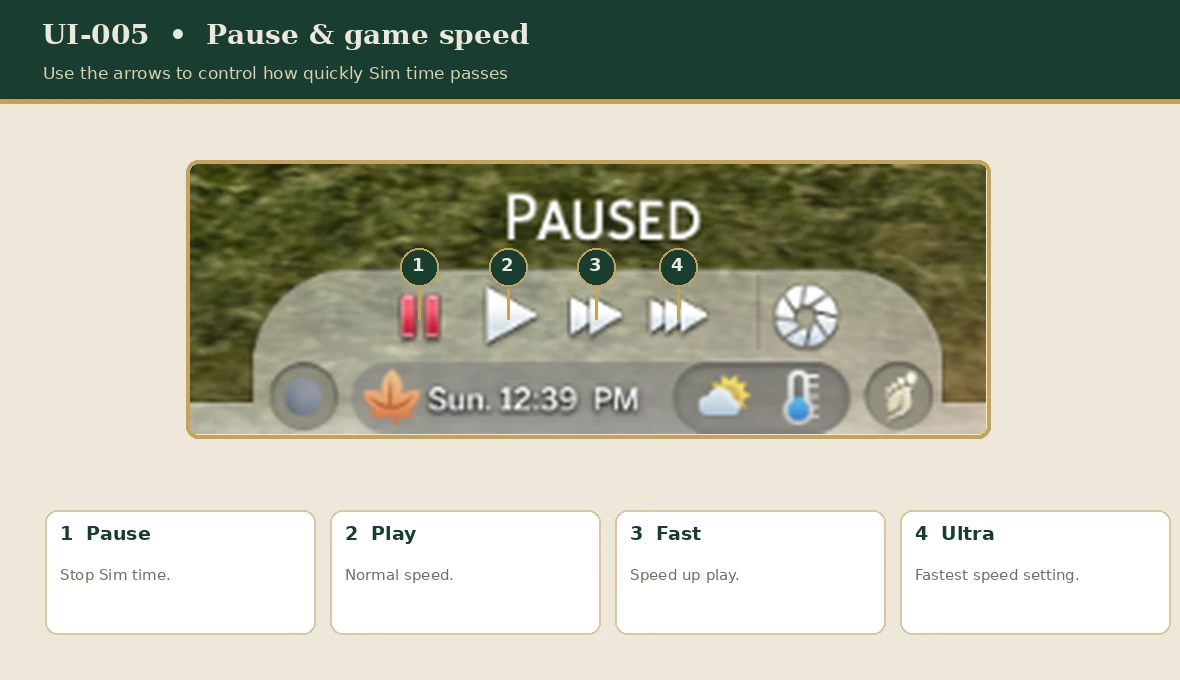
| Key | Action |
|---|---|
| P or 0 | Pause |
| 1 | Normal speed |
| 2 | Fast speed |
| 3 | Ultra speed |
Use the camera to explore your lot, follow Sims, and examine buildings from different angles.
| Key | Action |
|---|---|
| W / A / S / D | Move camera |
| Arrow keys | Move camera |
| Z / X | Zoom in or out |
| + / - | Zoom in or out |
| Enter | Center on active Sim |
| M | Open map view |
The game offers different camera styles. Explore the camera settings to find one that feels comfortable.
PART SIX
These shortcuts can make everyday gameplay and building much easier.
| Shortcut | Function |
|---|---|
| Esc | Cancel or close a menu |
| Spacebar or N | Switch to the next Sim |
| Ctrl + Z | Undo in Build Mode |
| Ctrl + Y | Redo in Build Mode |
| G | Toggle the Build Mode grid |
| T | Top-down view in Build Mode |
| , or . | Rotate a selected object |
| Alt | Adjust object placement while holding it |
Shortcuts depend on the active game mode and selected tool. Keyboard layouts may also differ.
Start by practicing Undo, Redo, the grid toggle, and object rotation. These are especially useful when furnishing your first home.
PART SEVEN
Saving regularly is one of the best habits to develop.
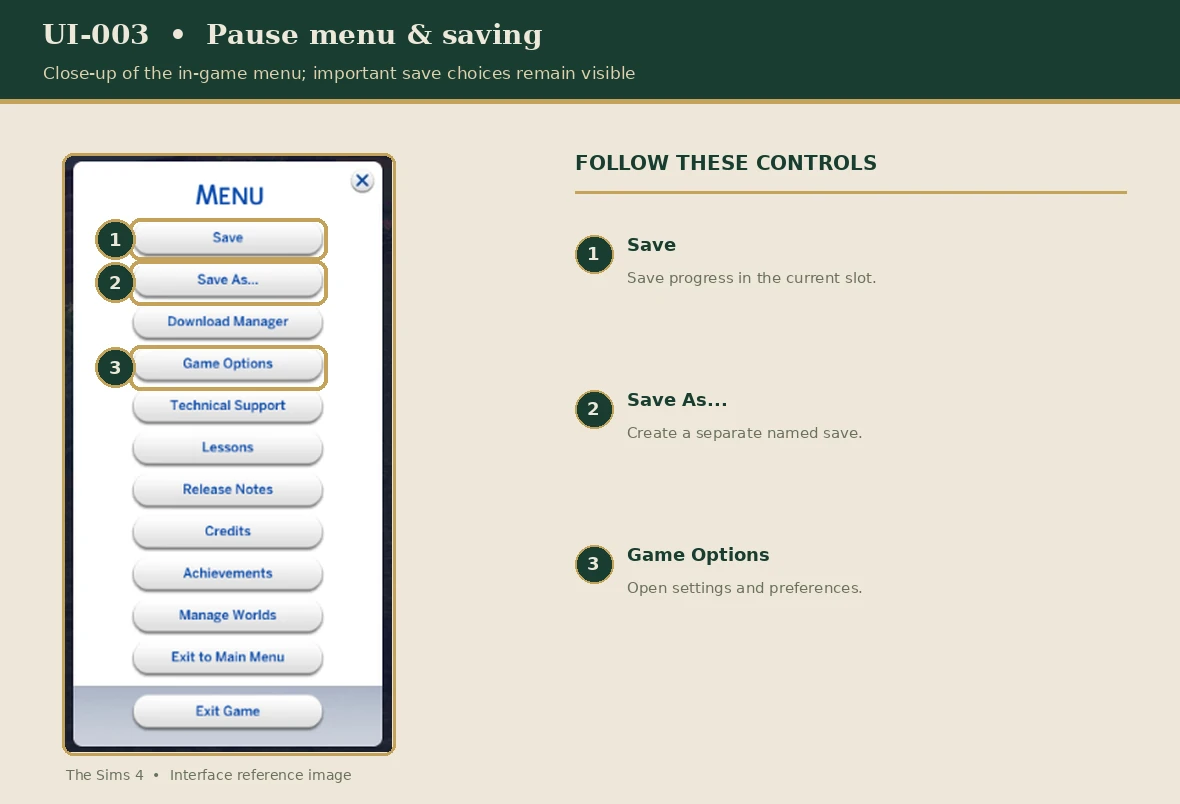
The Sims 4 also includes Autosave and Save Reminder settings.
Autosave maintains one automatically updated slot. A new Autosave replaces the previous Autosave, so it should not replace your own manual saves.
To review these features, open Game Options and find Save Settings.
If you are creating a large manor, working on a long challenge, or experimenting with major changes, make a separate manual save before continuing.
PART EIGHT
Try these simple activities in a new Base Game household.
You don't need to memorize every shortcut. As you play, the controls will become more familiar.
For more help with game controls and saved games, explore these official EA resources.
Official Sims 4 Controls & Shortcuts ↗ EA's Save Recovery Guide ↗Research reviewed: November 2026.
A WORLD OF POSSIBILITIES
Now that you understand the basic interface and controls, you're ready to explore Create-a-Sim, household gameplay, and building.
← Return to the Beginner's Guide