World
A larger location containing multiple neighborhoods, homes, and community venues.
A creative home for Sims 4 builders, storytellers & dreamers.
THE WANDERING WHIMS BEGINNER'S LIBRARY
From charming starter cottages to empty lots waiting for a dream home, every Sim story needs a place to begin. Discover how to choose a world, select a home, and settle into your new neighborhood.
✧ BASE GAME ONLY · BEGINNER FRIENDLY ✧
PART ONE
The Sims 4 organizes its playable locations into worlds, neighborhoods, and lots.
A larger location containing multiple neighborhoods, homes, and community venues.
A smaller area inside a world, containing individual properties and surrounding scenery.
A designated property where players can build, live, or visit community venues.
For example, Willow Creek is a world, Foundry Cove is one of its neighborhoods, and the individual houses are lots.
The Sims 4 is not a fully open-world game. Traveling between separate lots may involve loading screens.
PART TWO
You do not need an expansion pack to choose from several different places to live.
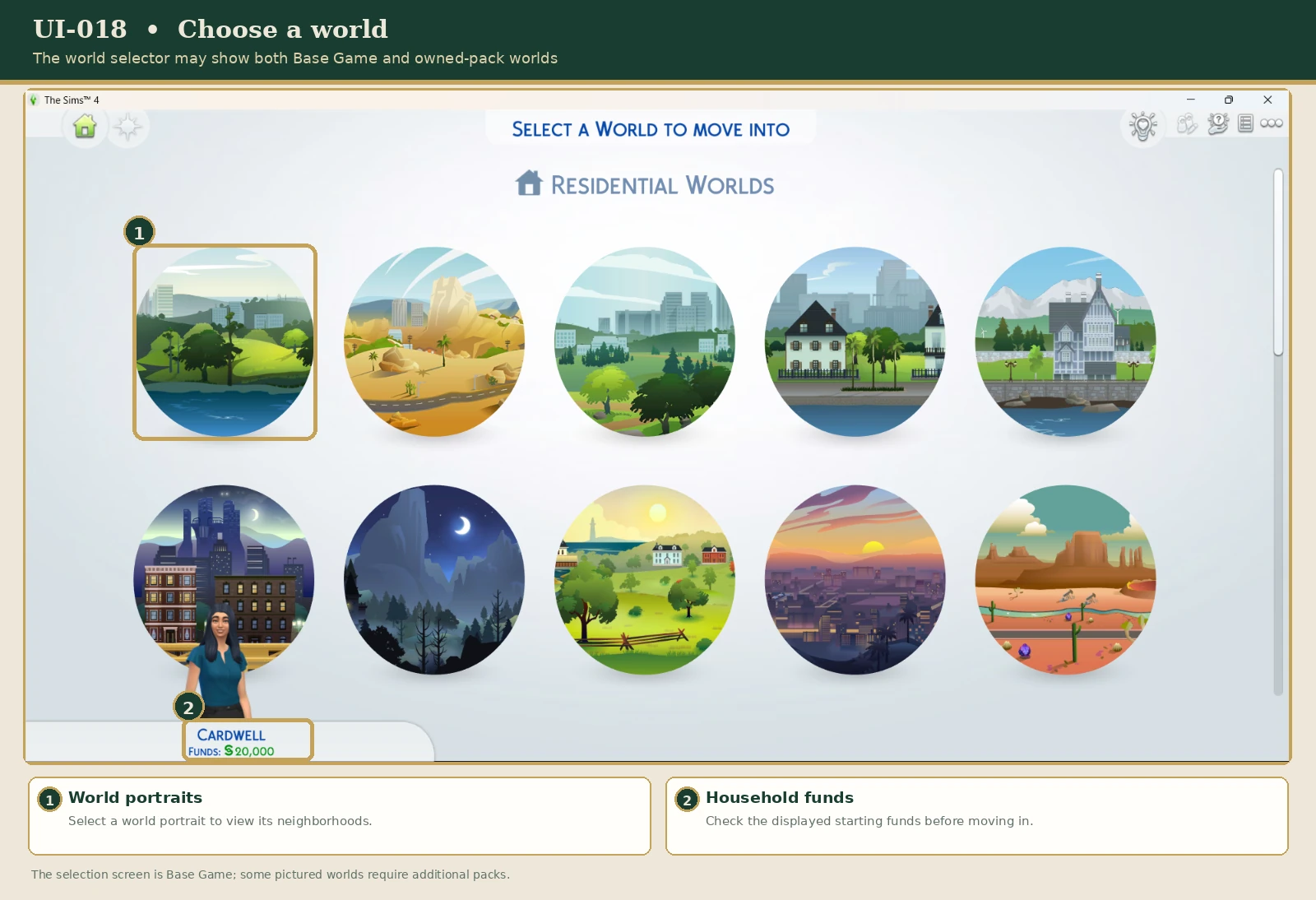
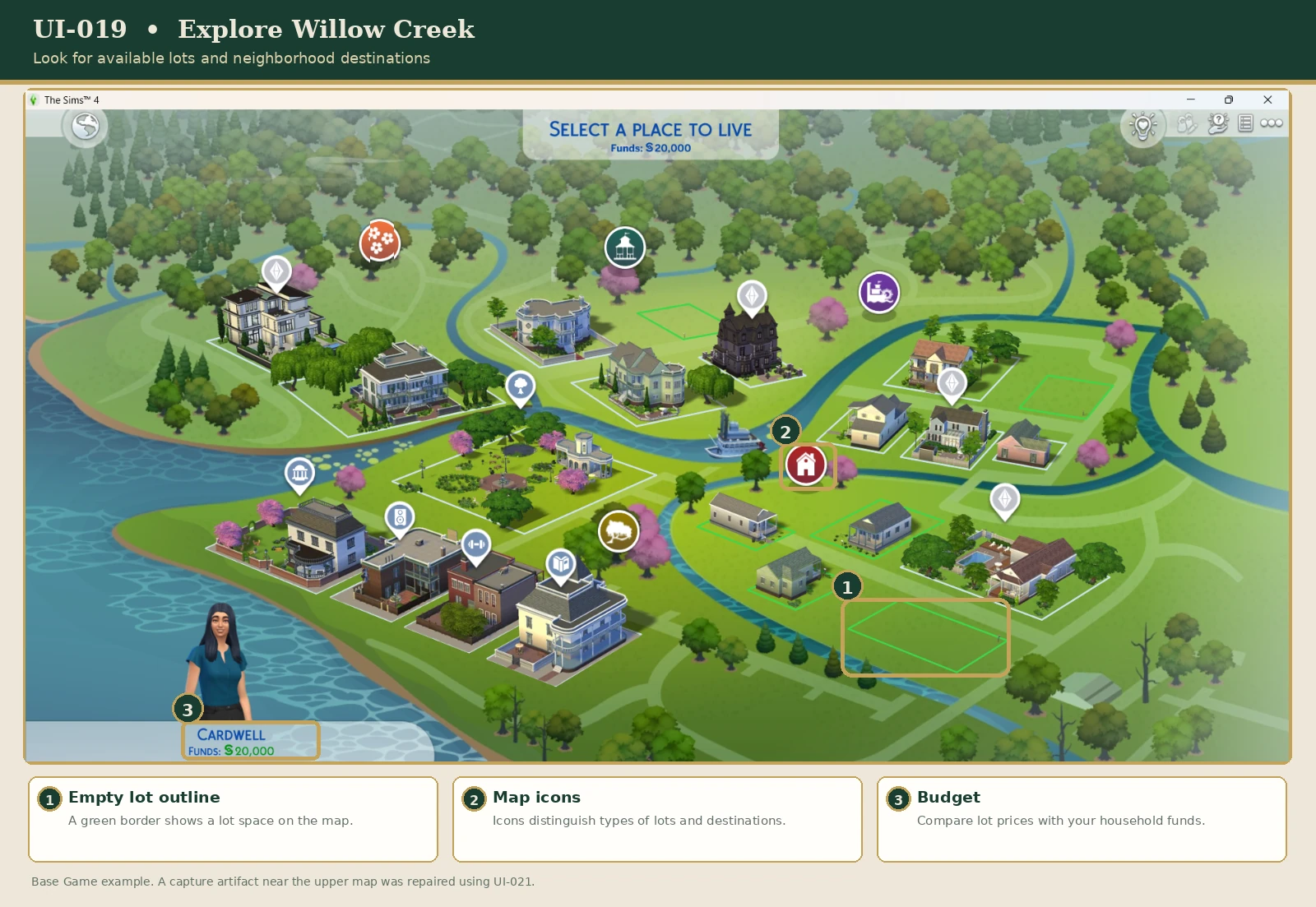
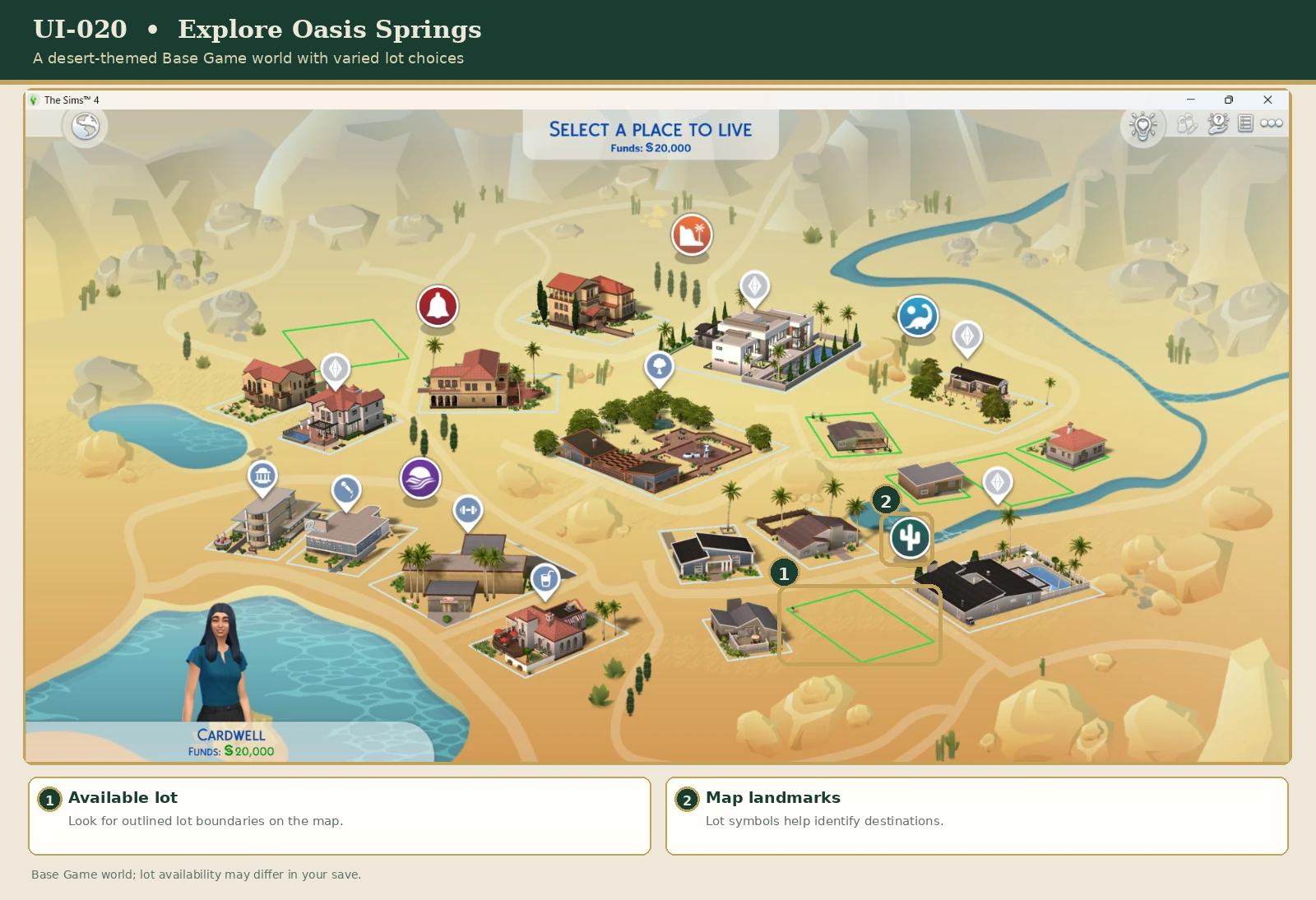
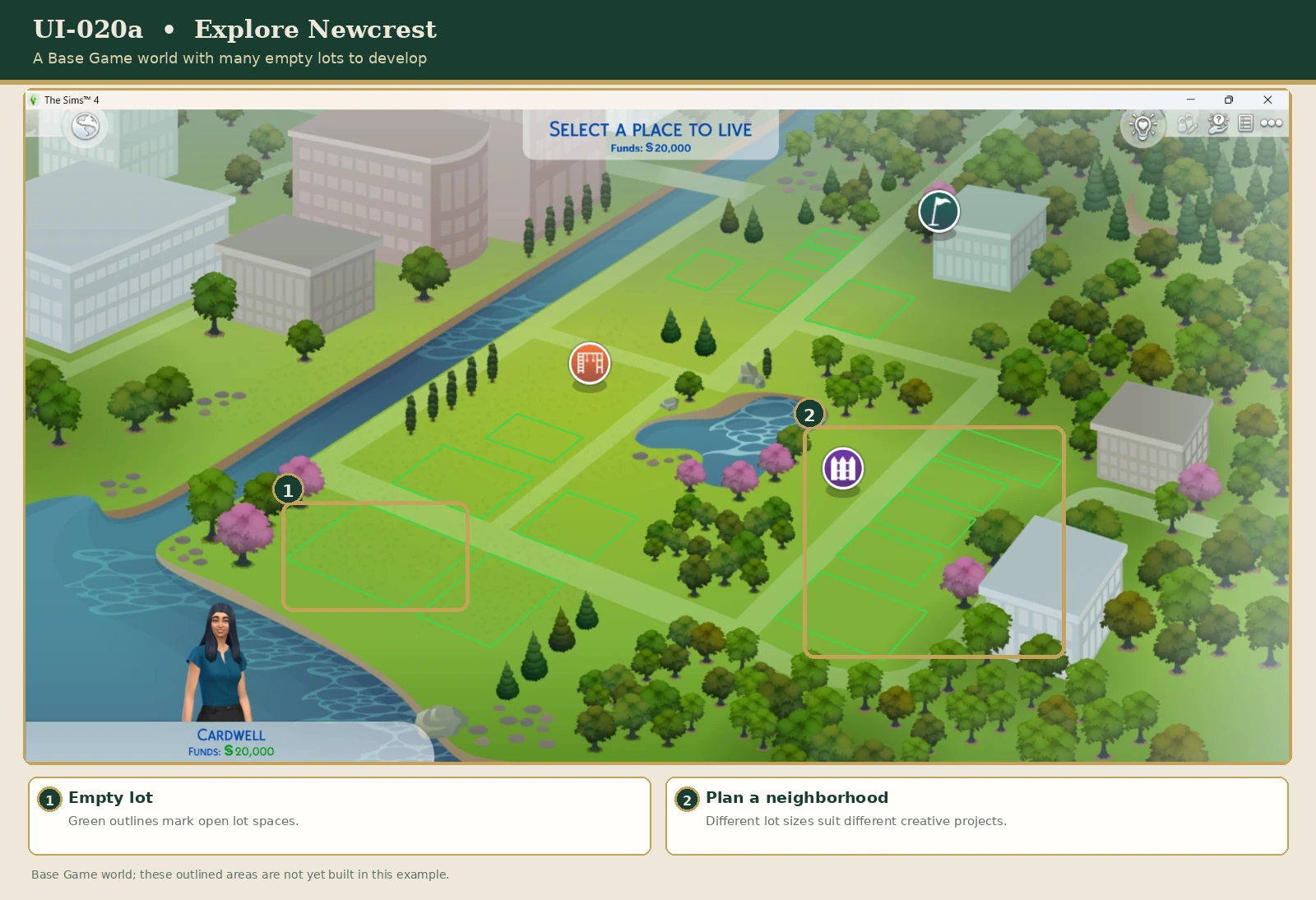
Traditional Neighborhood Charm
A green, suburban world with parks, residential neighborhoods, and traditional home styles.
A lovely setting for family gameplay, cozy cottages, and classic homes.
Desert Living
A sun-soaked desert world featuring rocky scenery, palm trees, and residential neighborhoods.
A fitting choice for modern homes, desert retreats, and outdoor adventures.
A Blank Canvas
A world filled with empty lots ready for players to develop.
Especially appealing to builders who want to create their own homes, businesses, and community spaces.
If you want to begin playing immediately, Willow Creek or Oasis Springs may be easier.
If building is your favorite activity, Newcrest offers plenty of creative freedom.
Additional expansion packs introduce other worlds and specialized living experiences. They are optional for this guide.
PART THREE
After finishing Create-a-Sim, you'll be able to choose a home for your household.
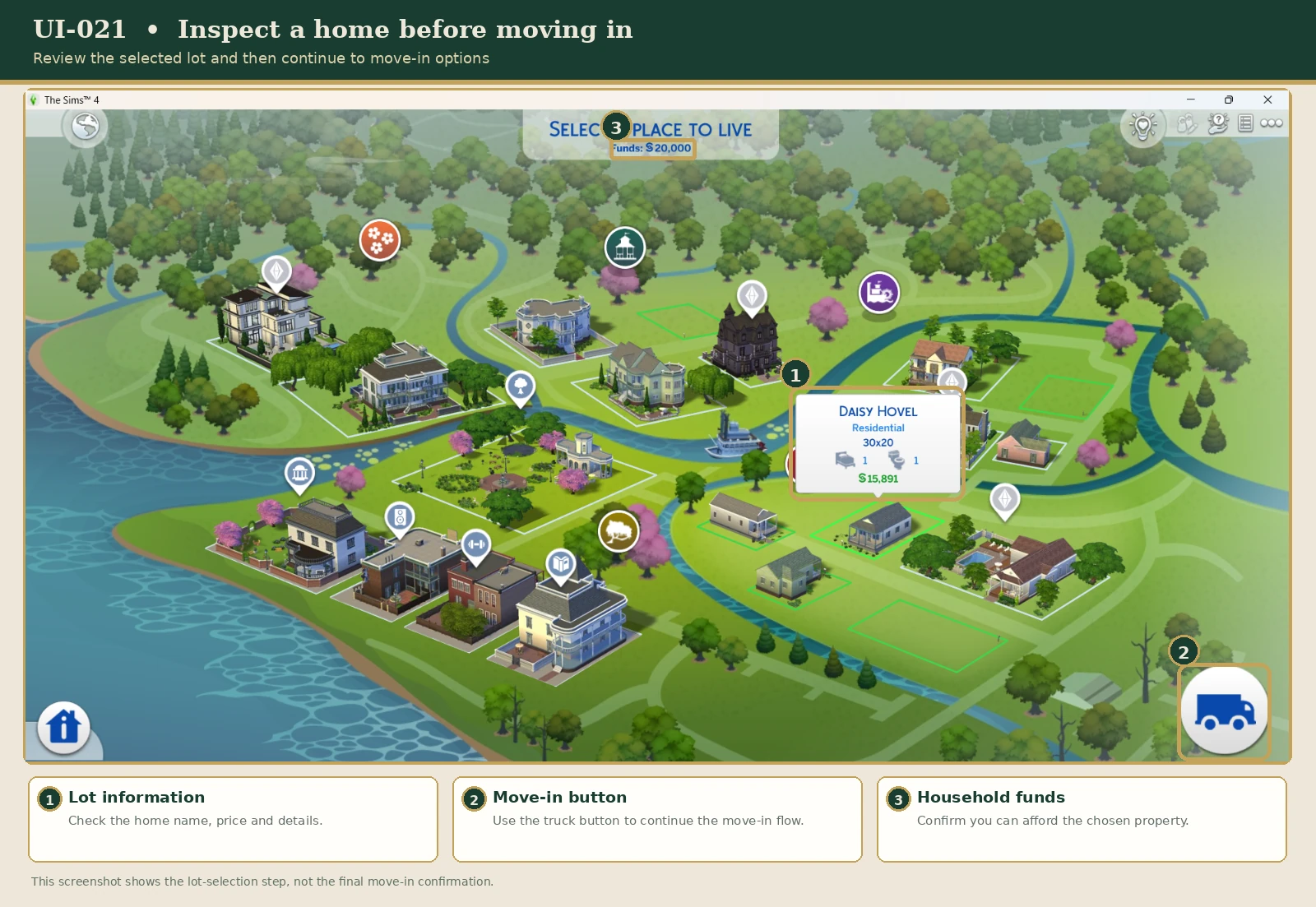
Some properties are already occupied, too expensive, or unavailable to your household.
If a home cannot be selected, try another residential lot or review your household's available funds.
PART FOUR
Not every property offers the same starting experience.
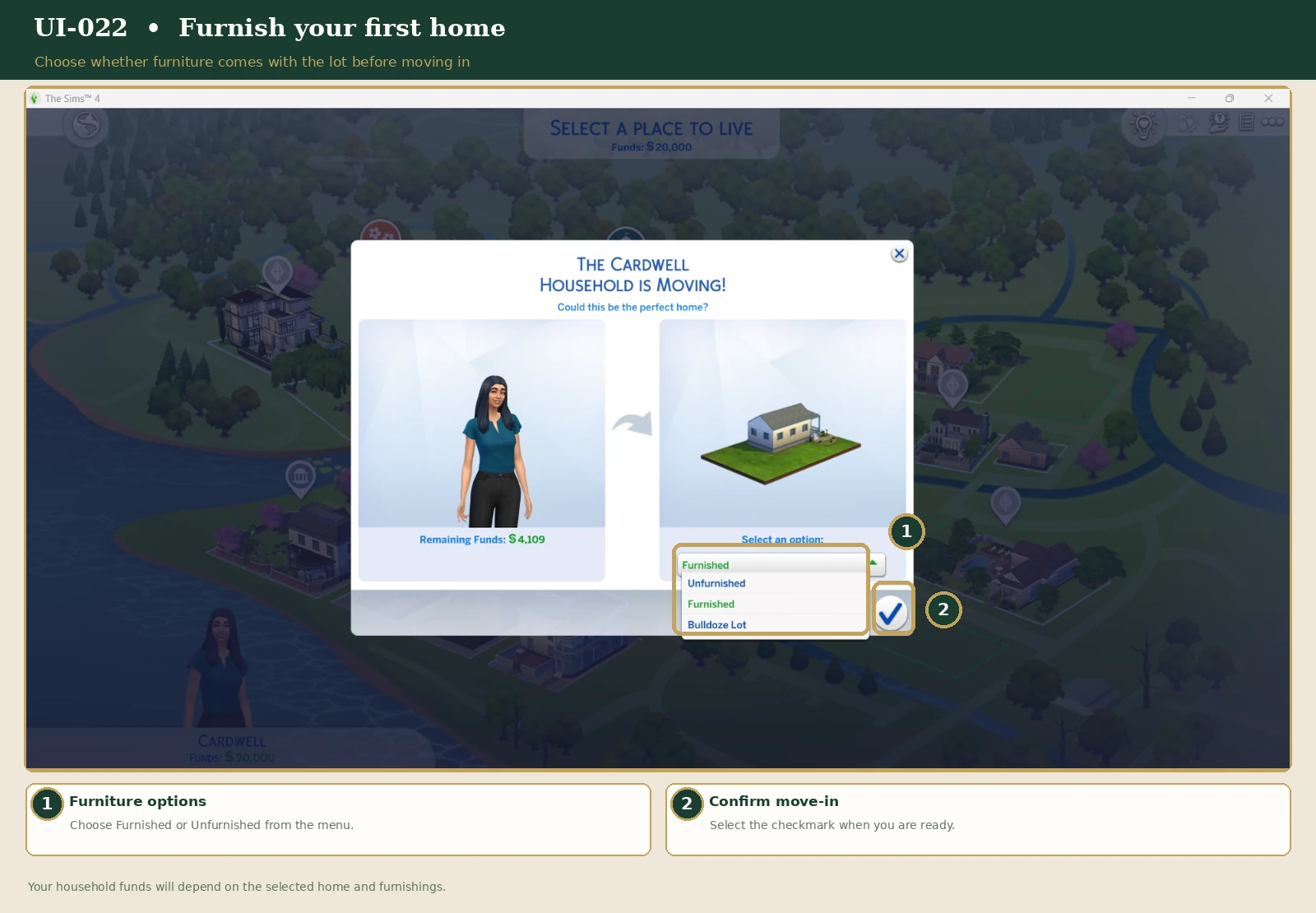
A house that already contains furniture and other objects.
Often the easiest option for new players who want to begin gameplay right away.
An existing house purchased without its movable furnishings.
A great option for players who enjoy decorating interiors without having to construct the building.
A property without a completed house.
Perfect for creating a completely original home using Build Mode.
Furnished properties usually cost more because of their contents. Not every lot offers every purchase option.
Want to practice interior design? Try buying an unfurnished starter home and decorating each room yourself.
When you're ready for a bigger challenge, move on to an empty lot and design the entire house.
PART FIVE
The Sims 4 uses an in-game currency called Simoleons, represented by the symbol §.
New households receive starting funds to help purchase a home and begin their lives. Under standard starting rules, the amount depends in part on household size.
Your household's remaining money is used for things such as:
A practical first home should include essentials for keeping your Sims comfortable.
A usable bed.
A toilet, sink, and shower or bathtub.
A refrigerator and suitable food-preparation items.
Space to sit, socialize, and enjoy activities.
Avoid spending your entire starting budget on your house or its decorations.
Keep some Simoleons available for food, bills, and unexpected expenses while your Sim begins earning money.
PART SIX
Manage Worlds lets you explore locations and manage eligible households and lots.
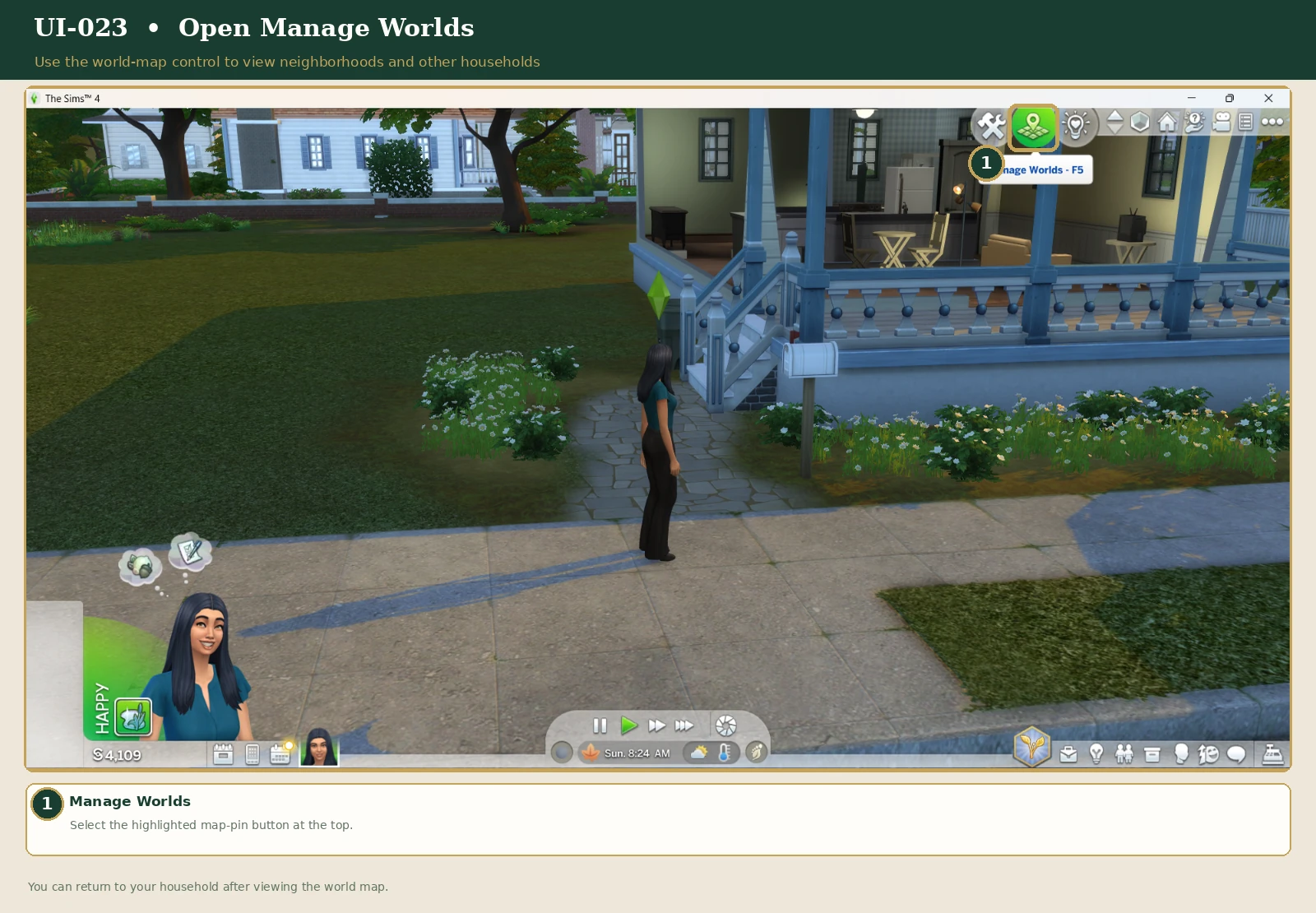
You can use it to:
Manage Worlds includes more advanced household options, such as transferring Sims between households.
Multiple households can exist within the same saved game, even if you normally play only one household.
PART SEVEN
Yes! Your Sim does not have to remain in their starter home forever.
You can move your household to another eligible property after you've saved enough money or decided it's time for a change.
The in-game phone may also offer a Move Household action. Exact menu placement can vary by game version.
Moving can become a major milestone in your Sim's story. Perhaps they finally earn enough to buy a dream home, inherit an old property, or move somewhere new to pursue a career.
PART EIGHT
Not interested in building a house from scratch? You can explore creations shared by other players through The Sims 4 Gallery.
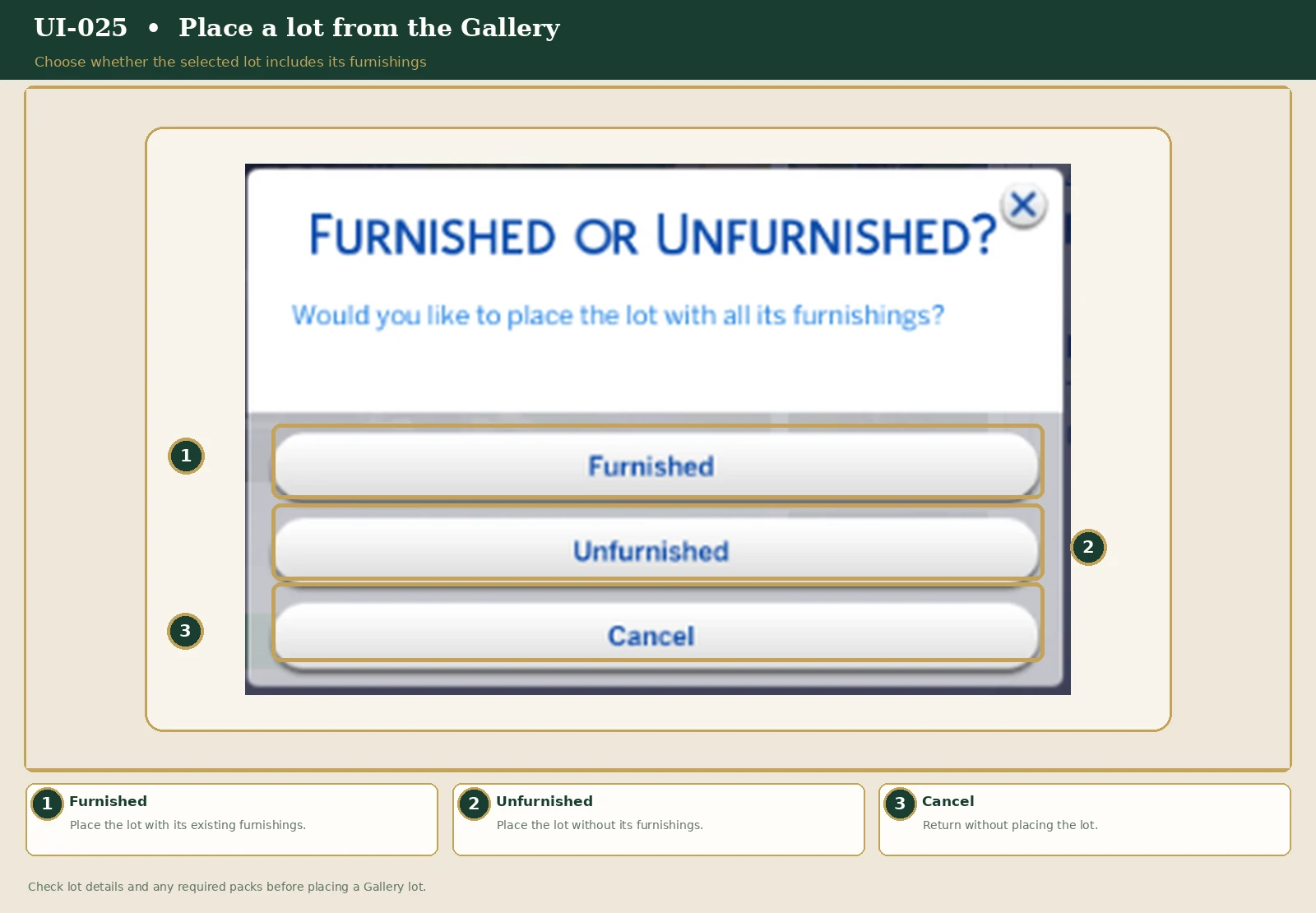
The Gallery contains households, individual rooms, and complete lots.
A Gallery creation cannot be placed onto a lot that is too small for it.
If a Gallery creation uses expansion packs or custom content that you do not own, some objects or features may be missing.
Look for homes made without additional packs or CC when you want the simplest experience.
Even when browsing Base Game-friendly creations, check the listed requirements before placing a lot.
PART NINE
Put your new knowledge into practice with a simple beginner activity.
Your Sim has just moved to a new neighborhood. They have a modest budget and a dream of creating a home that feels like their own.
Choose an unfurnished starter home and decorate it using only the Base Game furniture catalog.
Give your home a theme, such as a cozy cottage, traditional townhouse, or little woodland retreat.
There is no required score or time limit. This exercise is simply a way to learn the game while getting creative.
For more help with worlds, households, and the Gallery, explore these official EA resources.
EA's New Player FAQ ↗ EA's Gallery & Library Help ↗Research reviewed: November 2026.
HOME IS WHERE THE STORY BEGINS
You've chosen a world, found your first home, and learned how to manage your household's property.
Now it's time to begin exploring your Sim's everyday life.
← Return to the Beginner's Guide