Appearance
Customize faces, hairstyles, body shapes, clothing, and style.
A creative home for Sims 4 builders, storytellers & dreamers.
THE WANDERING WHIMS BEGINNER'S LIBRARY
Every Sim has a story waiting to be told. Discover how to create a character, customize their appearance, shape their personality, and prepare them for a new life.
✧ BASE GAME ONLY · BEGINNER FRIENDLY ✧
PART ONE
Create-a-Sim, often shortened to CAS, is the character creation system in The Sims 4.
This is where you decide who your Sims are, what they look like, and what kind of lives they might lead.
Customize faces, hairstyles, body shapes, clothing, and style.
Choose traits, aspirations, and personal preferences.
Create individual Sims, families, and other households.
Your first Sim doesn't have to be perfect. You can experiment with different appearances, personalities, and stories.
PART TWO
The easiest way to begin is by starting a new game.
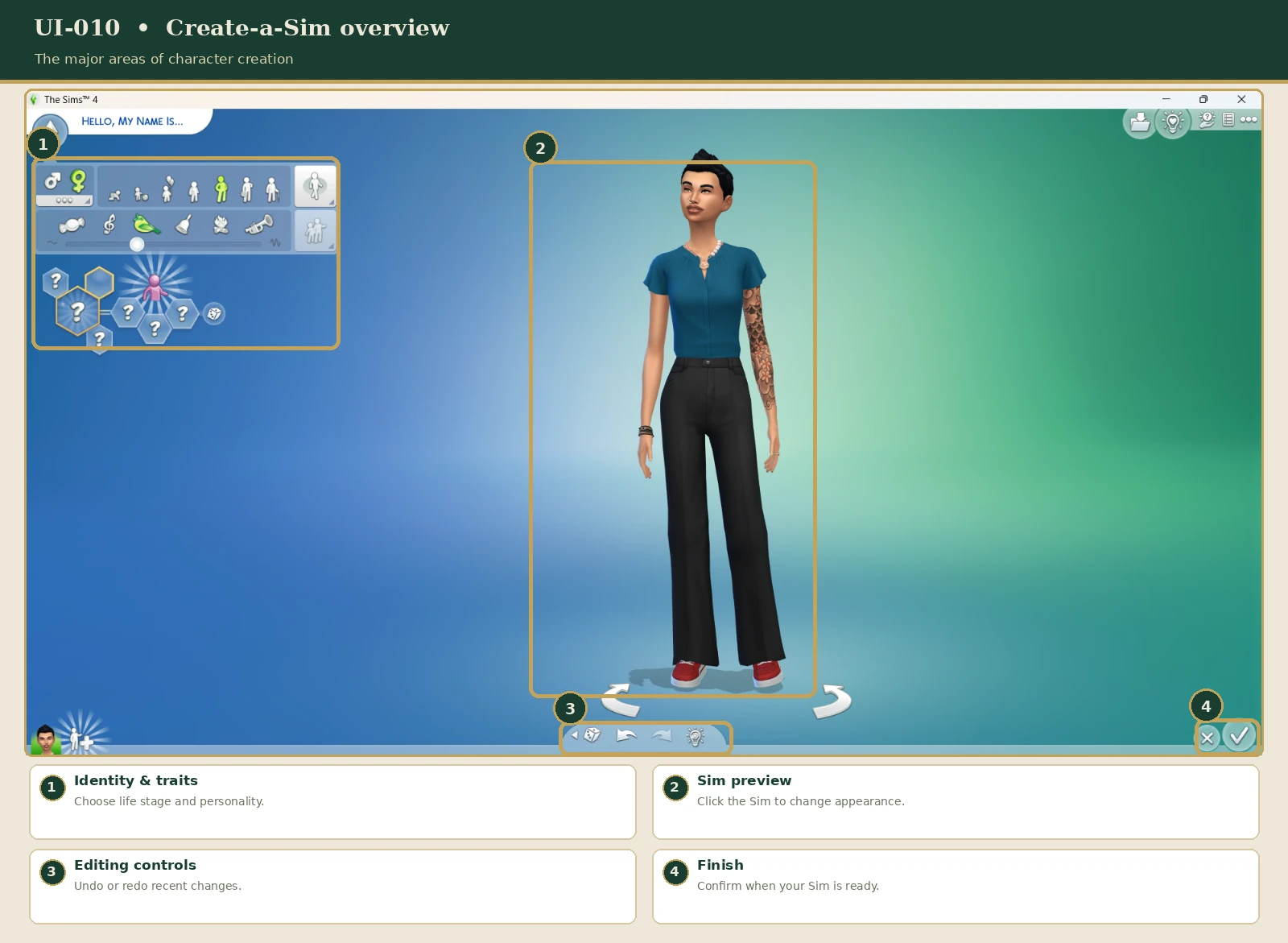
Already playing with a household? You can return to Create-a-Sim without starting a new game.
You can also open Manage Worlds, select Manage Households, and choose the household you want to edit.
Select the pencil-shaped Edit Household button to enter Create-a-Sim. This is useful when you want to customize household members or add another Sim.
Returning to Create-a-Sim during gameplay does not always provide every option available when creating a new Sim. Certain details, including some personality and age settings, may be restricted.
You can also access supported appearance-editing options later while playing. The options available for an existing Sim may be more limited than when creating a new household.
PART THREE
Begin by giving your Sim a name and choosing their life stage.
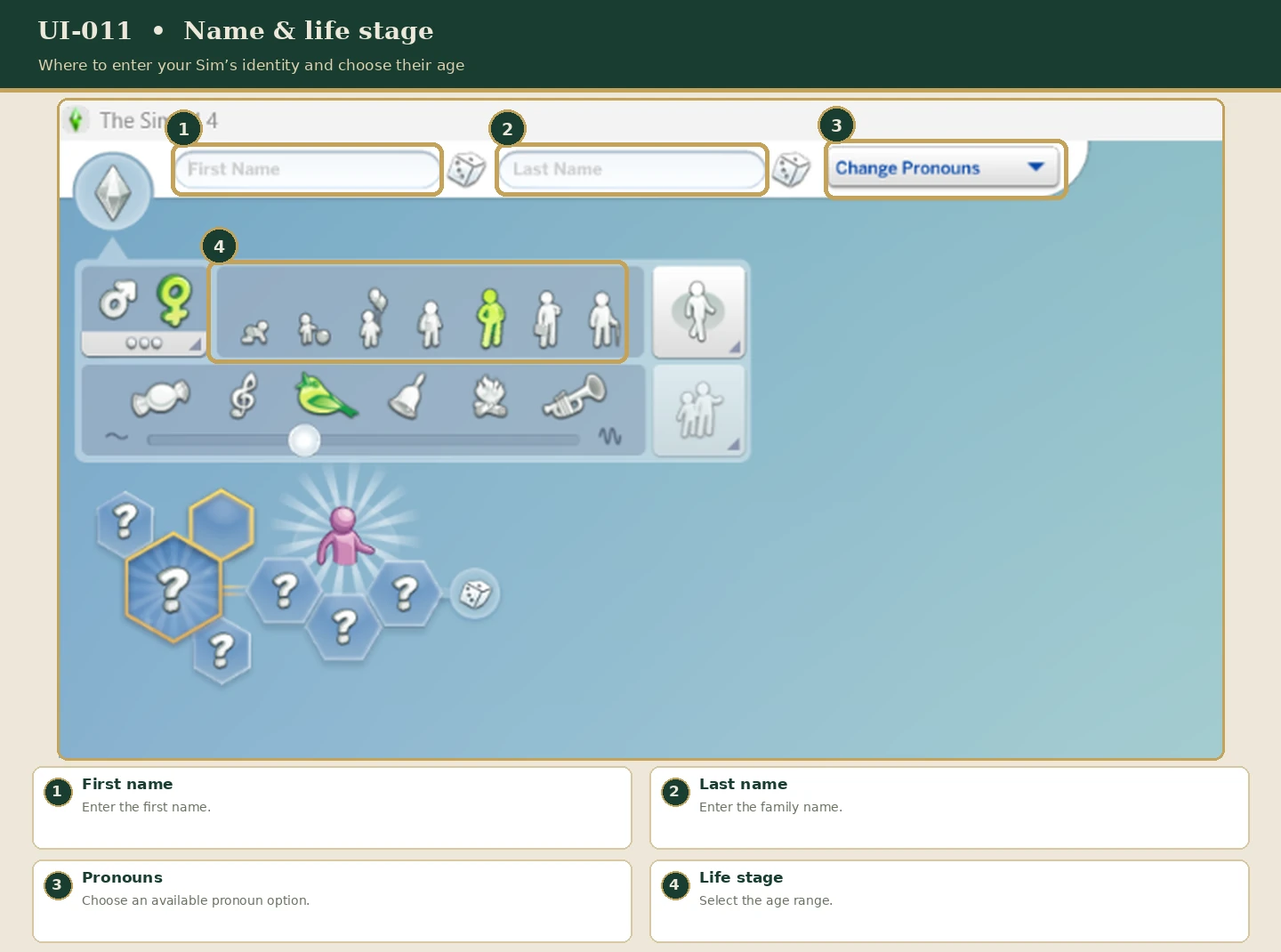
The game includes several life stages, from infants and children through adults and elders. Available CAS settings vary depending on age.
Depending on your Sim and supported settings, you can also customize aspects of their voice, walking style, gender presentation, pronouns, and other identity options.
A Young Adult or Adult Sim can be a straightforward choice for your first independent household. These life stages provide access to many everyday activities, careers, and goals.
PART FOUR
Create-a-Sim lets you adjust physical features by selecting different parts of your Sim.
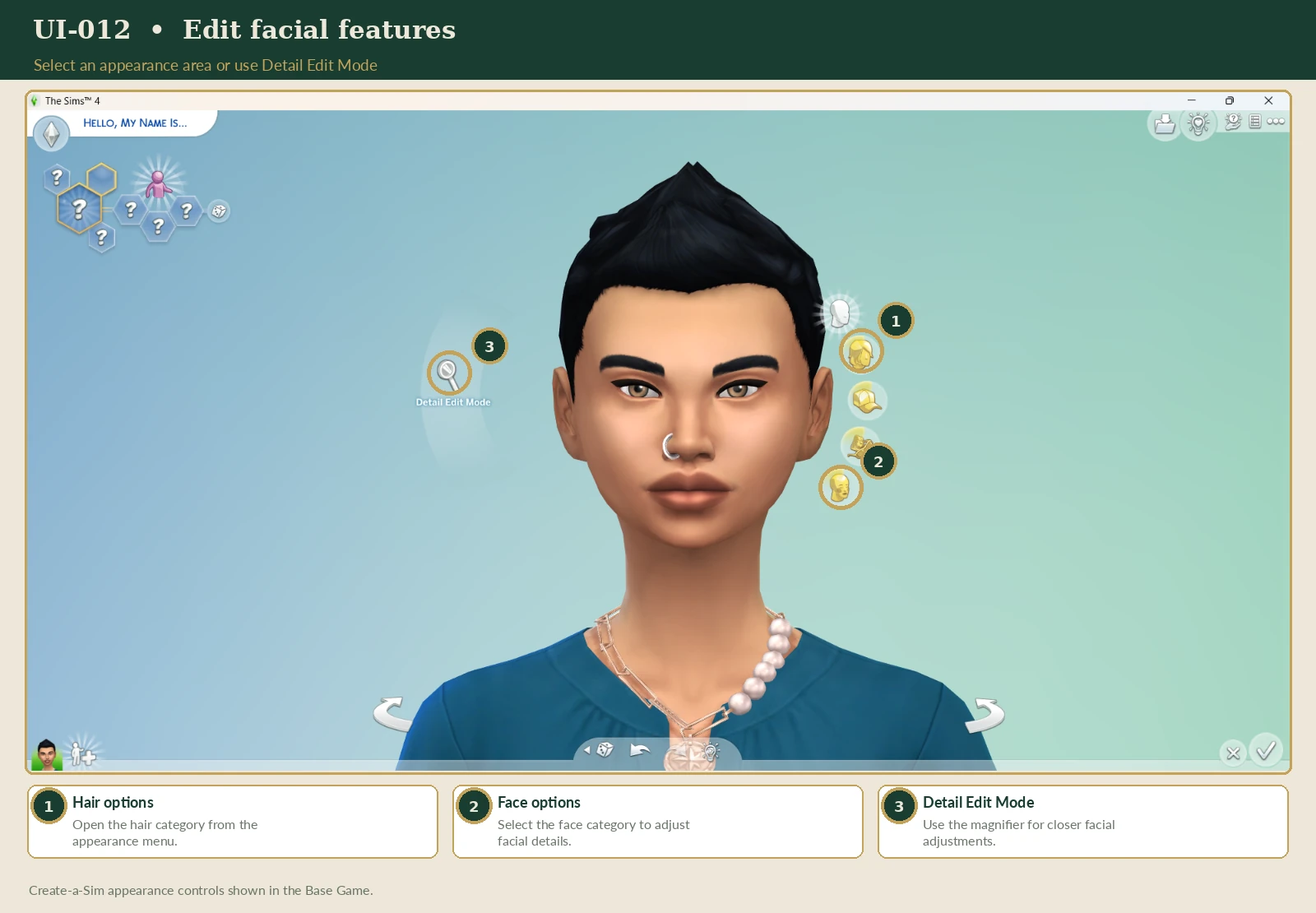
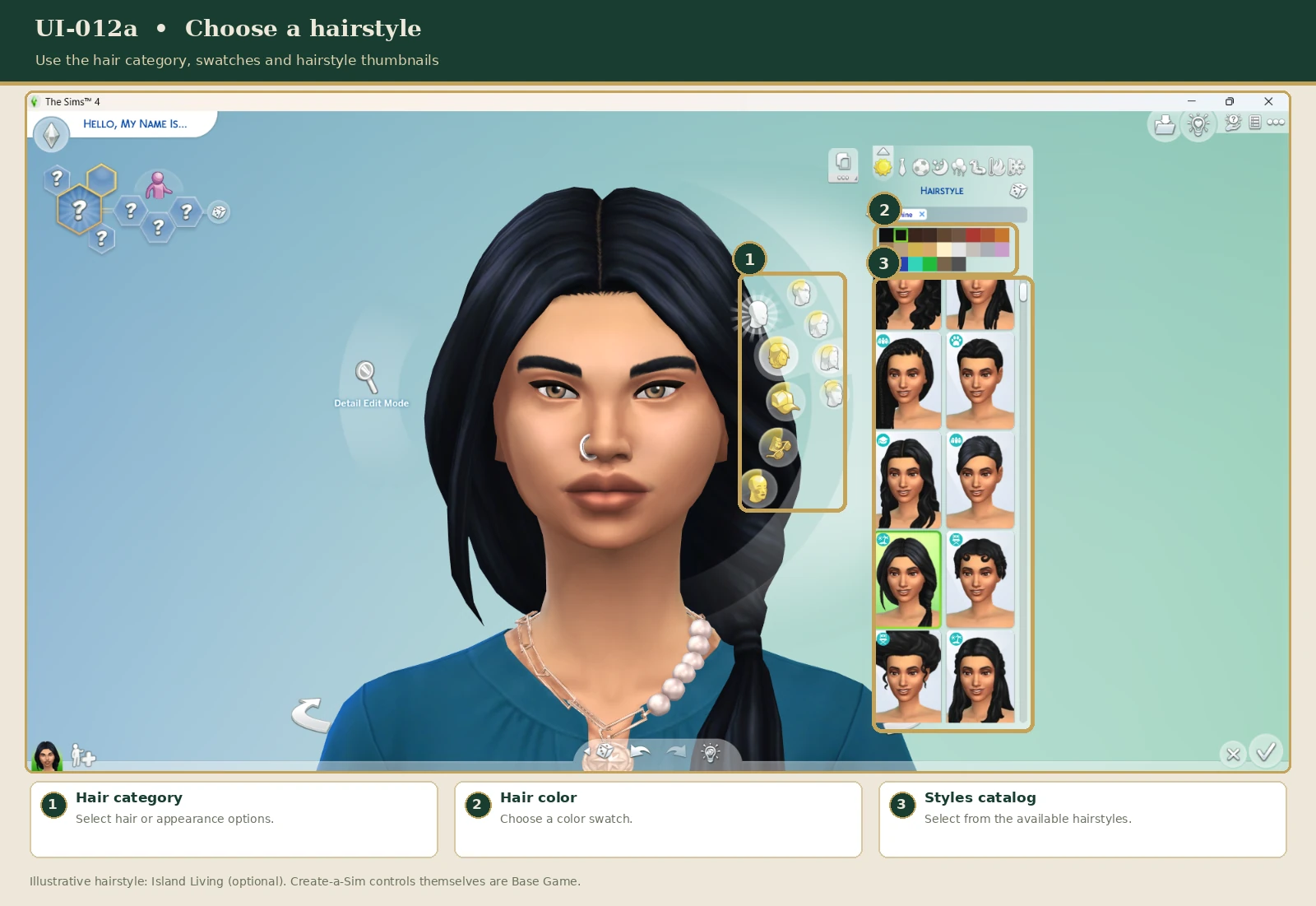
You can also explore Detail Edit Mode for more precise adjustments to supported facial features.
Sims can have outfits for different occasions.
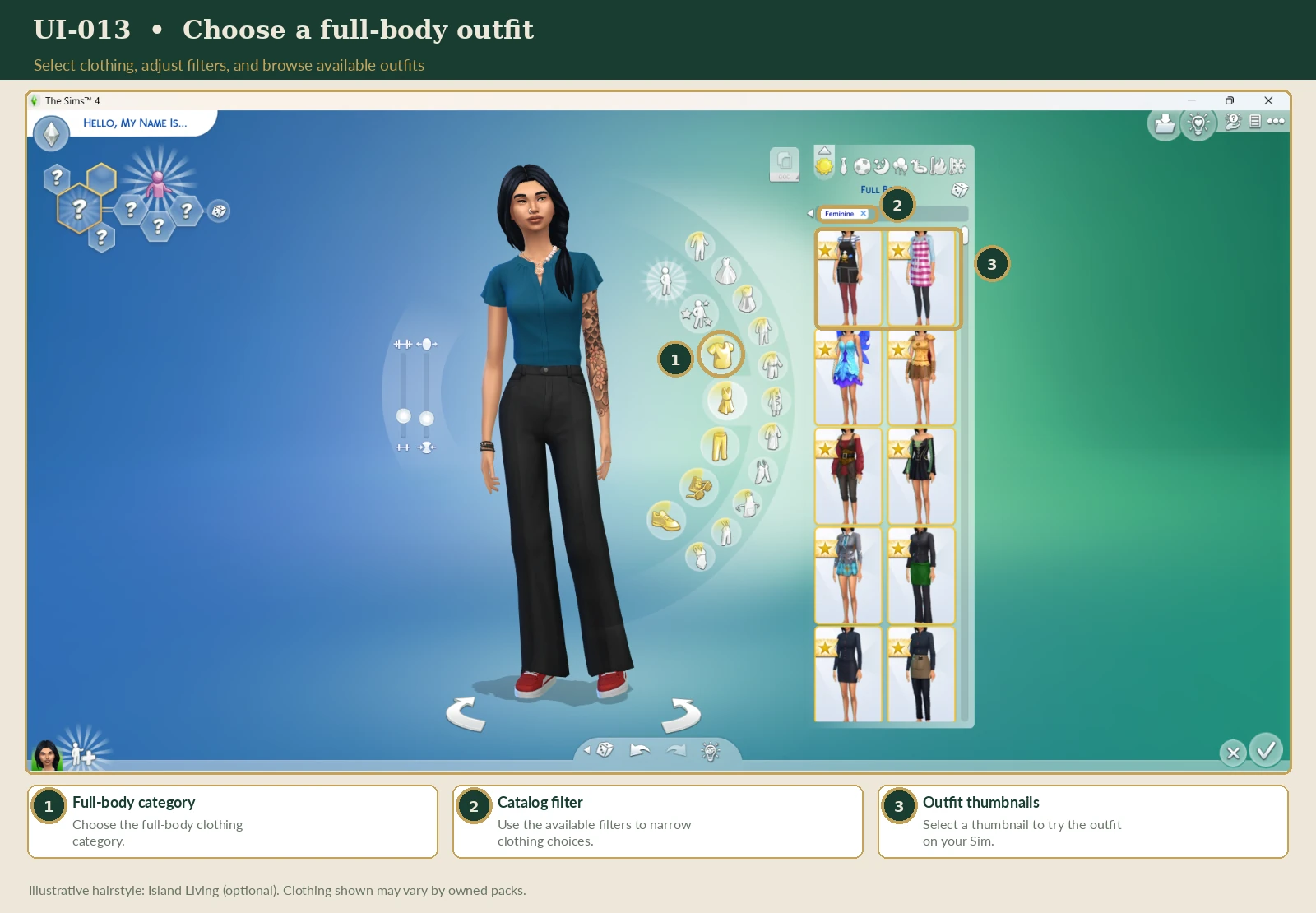
Did you know your Sim can have more than one outfit for each clothing category?
You can create up to five different outfits per category, giving your Sim more variety without needing to manually redesign their clothes every time.
Try creating a whole wardrobe for your Sim!
For example, give them casual everyday clothes, a cozy rainy-day look, a special occasion outfit, and several summer outfits.
You can use different outfits to reflect your Sim's personality, lifestyle, career, or changing story.
Hot and Cold Weather clothing categories are available in the Base Game. Seasons-specific weather gameplay requires the Seasons Expansion Pack.
Think about your Sim's lifestyle when choosing their clothes. A gardener, artist, librarian, or ambitious professional may each have a very different style.
PART FIVE
Personality traits help determine how Sims behave and respond to different situations.
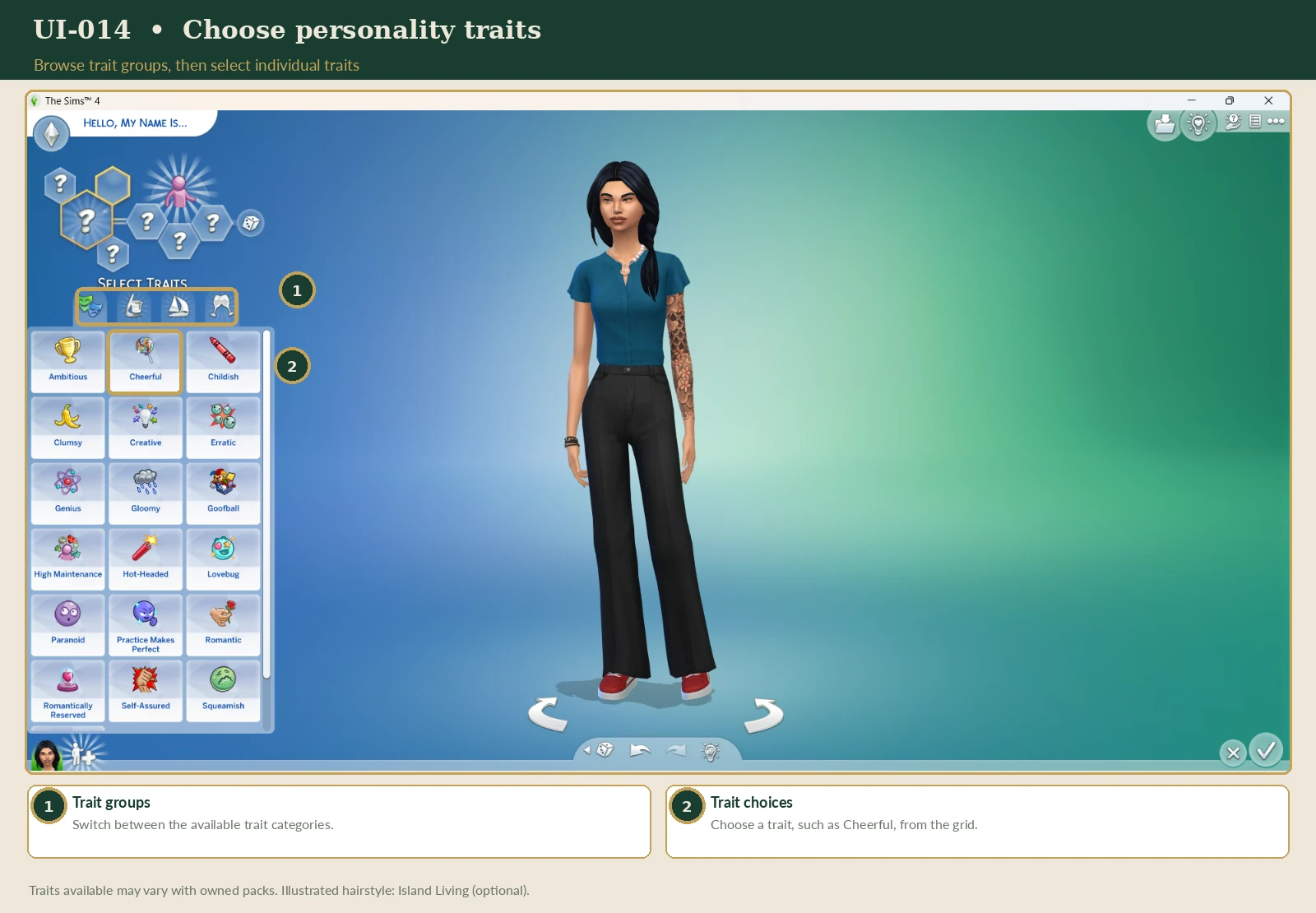
Young Adult, Adult, and Elder Sims generally begin with three personality trait choices. Younger Sims have different trait limits.
Suitable for artists, writers, and imaginative Sims.
A fitting choice for readers and researchers.
An option for Sims who enjoy socializing.
A natural fit for gardeners and outdoor enthusiasts.
These are examples, not required combinations. Choose traits that suit the kind of Sim you want to create.
PART SIX
An aspiration represents an important goal for your Sim.
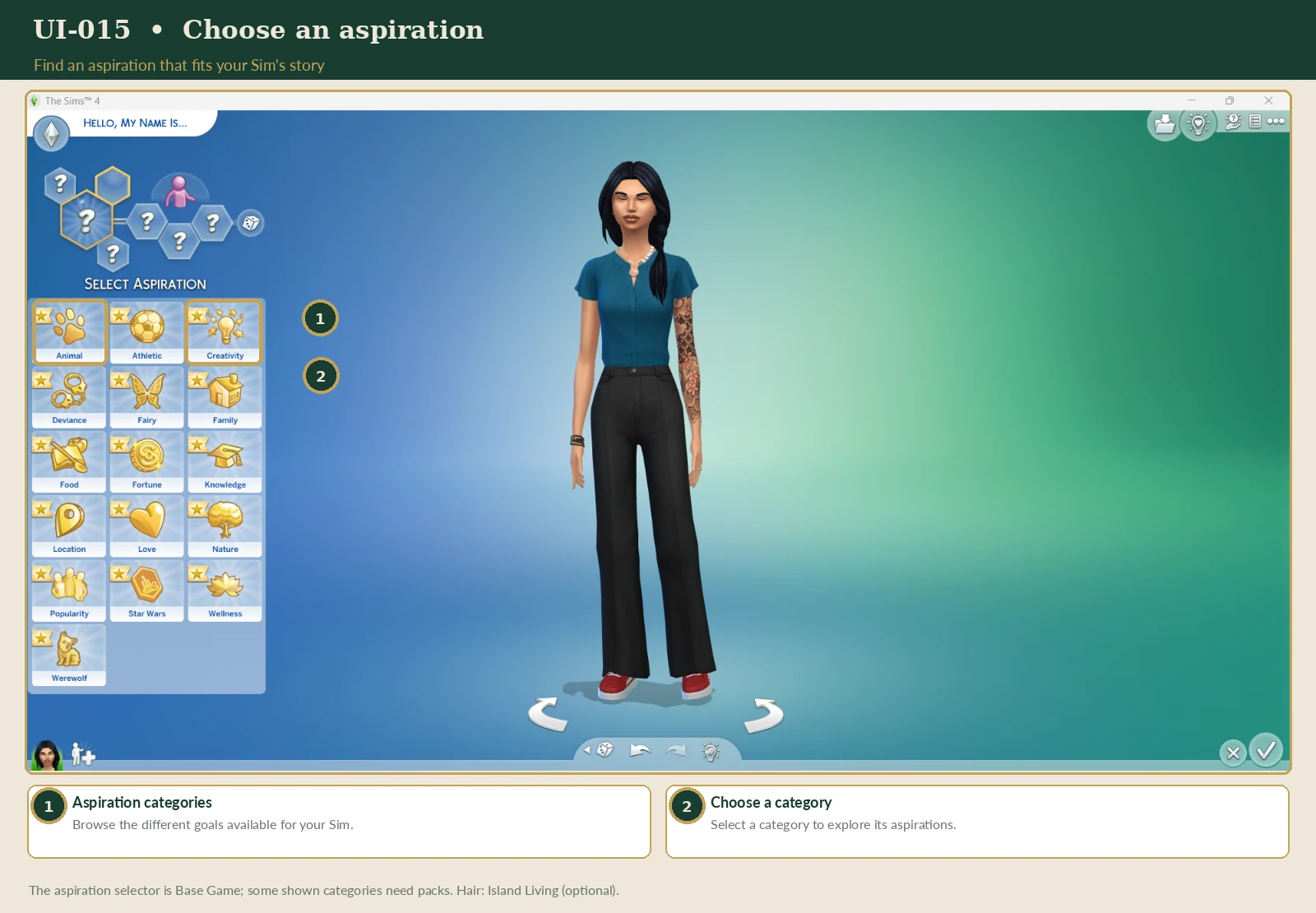
Aspirations contain objectives and milestones that give you activities to work toward. Completing an aspiration can provide rewards.
Base Game aspiration themes include areas such as:
Try pairing your Sim's aspiration with their backstory. A historian might pursue knowledge, while an aspiring artist might focus on creativity.
PART SEVEN
Likes and Dislikes let you give your Sim additional preferences.
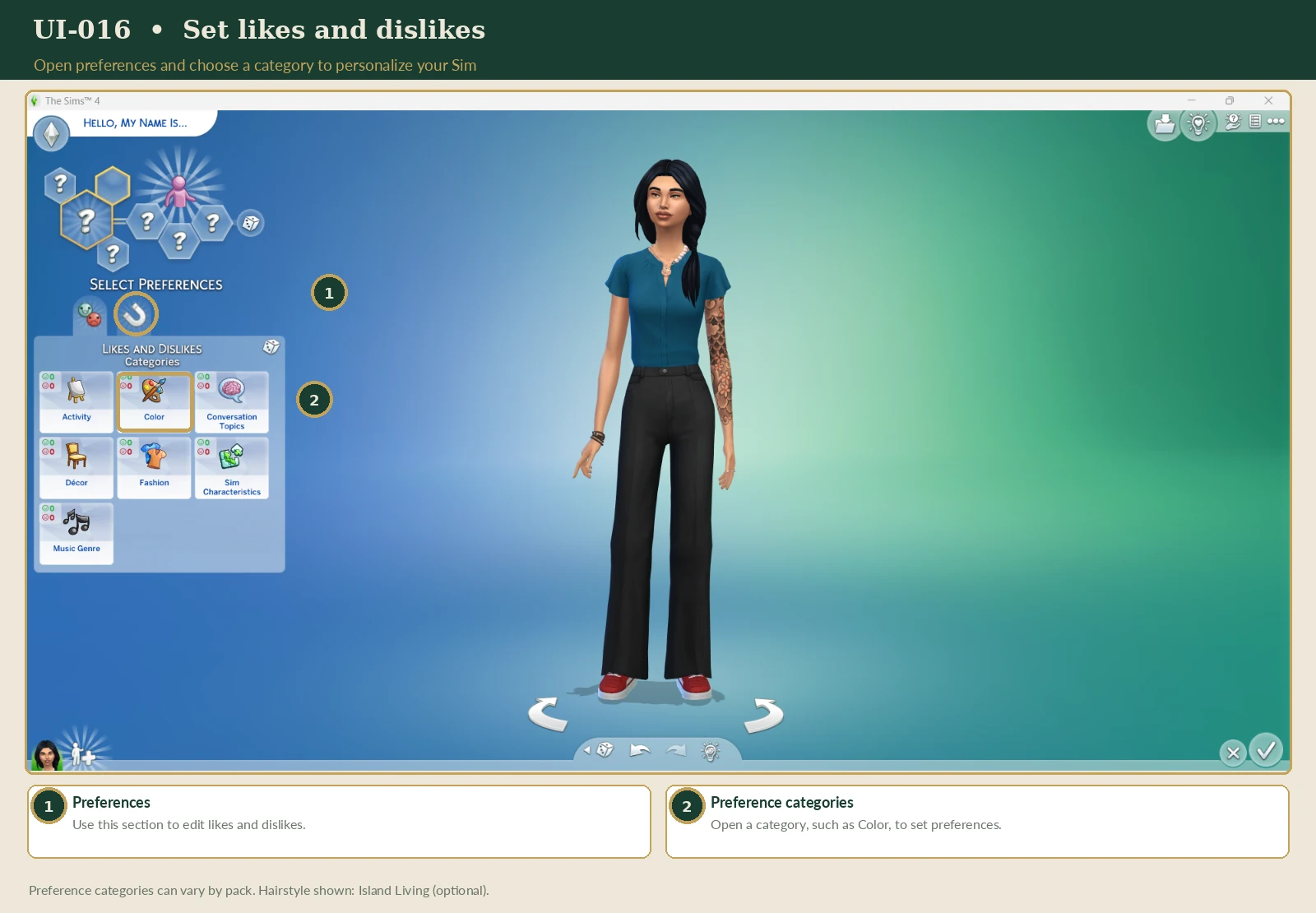
Base Game preferences include interests such as colors, music, and activities. Available preference categories can change through game updates and additional packs.
You may also encounter settings for relationship preferences, romantic interests, and Romantic Boundaries.
These systems help players develop different personalities and relationships. Some specialized attraction and romance features require additional packs.
EA's Identity & Romance Settings Guide ↗PART EIGHT
You can create a single Sim or add additional household members.
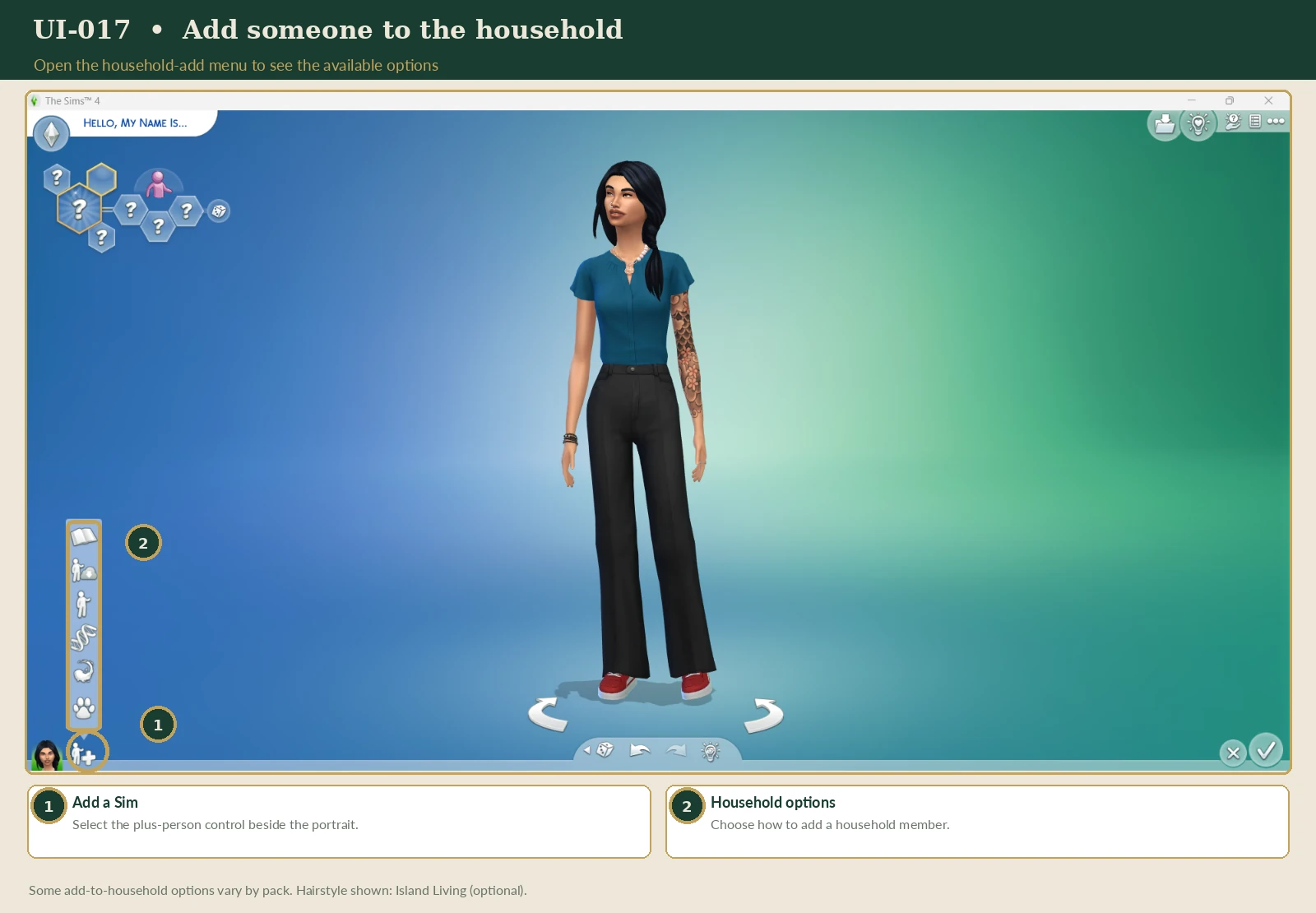
The household editing tools allow you to create different characters and configure supported relationships between them.
For example, you might create:
The game also provides genetics tools for creating related Sims.
A household with one or two Sims may be easier to manage when you're learning the game. You can explore larger households later.
PART NINE
When you're happy with your characters, review your household before continuing.
Saving a household to My Library keeps a reusable household creation. Saving your game preserves the progress of your current playthrough. These are different actions.
You can also share households through the Gallery, subject to EA account and online-access requirements.
EA's Gallery & My Library Guide ↗PART TEN
Ready to put everything you've learned together?
Your Sim has arrived in a new town with a dream of building a better life.
Give them a name, three personality traits, a personal ambition, and a style that reflects who they are.
Your Sim doesn't need an elaborate history. Sometimes the most interesting stories develop naturally through gameplay.
For more guidance on Create-a-Sim and your first household, explore these official EA resources.
EA's Ways to Play The Sims 4 ↗ EA's New Player FAQ ↗Research reviewed: November 2026.
EVERY SIM HAS A STORY
Now that you've created your character, you're ready to choose a home and begin exploring everyday life.
← Return to the Beginner's Guide