THE WANDERING WHIMS BEGINNER'S LIBRARY
Download, Install & Start The Sims 4
Your first Sim story begins here. Follow this guide to get the game, prepare your computer, and take your first steps into the Sims universe.
✧ FREE BASE GAME · BEGINNER FRIENDLY ✧
PART ONE
Where Can You Play?
The Sims 4 Base Game is free to download on supported platforms.
- Windows PC
- Mac
- PlayStation 4 and PlayStation 5
- Xbox One and Xbox Series X|S
On Windows and Mac, the EA app is the primary launcher for The Sims 4. PC players can also explore supported storefront options.
Expansion packs, game packs, stuff packs, and other optional content are not required to begin playing.
Visit the Official Sims 4 Download Page ↗PART TWO
Before You Download
Make sure your computer meets the game's system requirements and has enough available storage.
You will also need an EA account when installing through the EA app. An internet connection is required for initial activation.
Check the official system requirements before installing. Meeting the minimum requirements does not always mean the game will run at its best settings.
PART THREE
Install The Sims 4 on PC or Mac
The following steps use the official EA app installation method.
- Visit EA's official EA app page.
- Download the EA app for your supported Windows or Mac computer.
- Install the app and follow any instructions shown on-screen.
- Sign in with your EA account or create an account.
- Search for "The Sims 4" inside the EA app.
- Open the Base Game listing and choose Download.
- Review the installation location, language, and terms.
- Complete the download and installation process.
- Select Play when the game is ready.
Confirm that both your Mac and macOS version meet the current requirements for The Sims 4 and the EA app.
PART FOUR
Launch Your First Game
Once The Sims 4 is installed, open the game through your launcher and allow any required updates to finish.
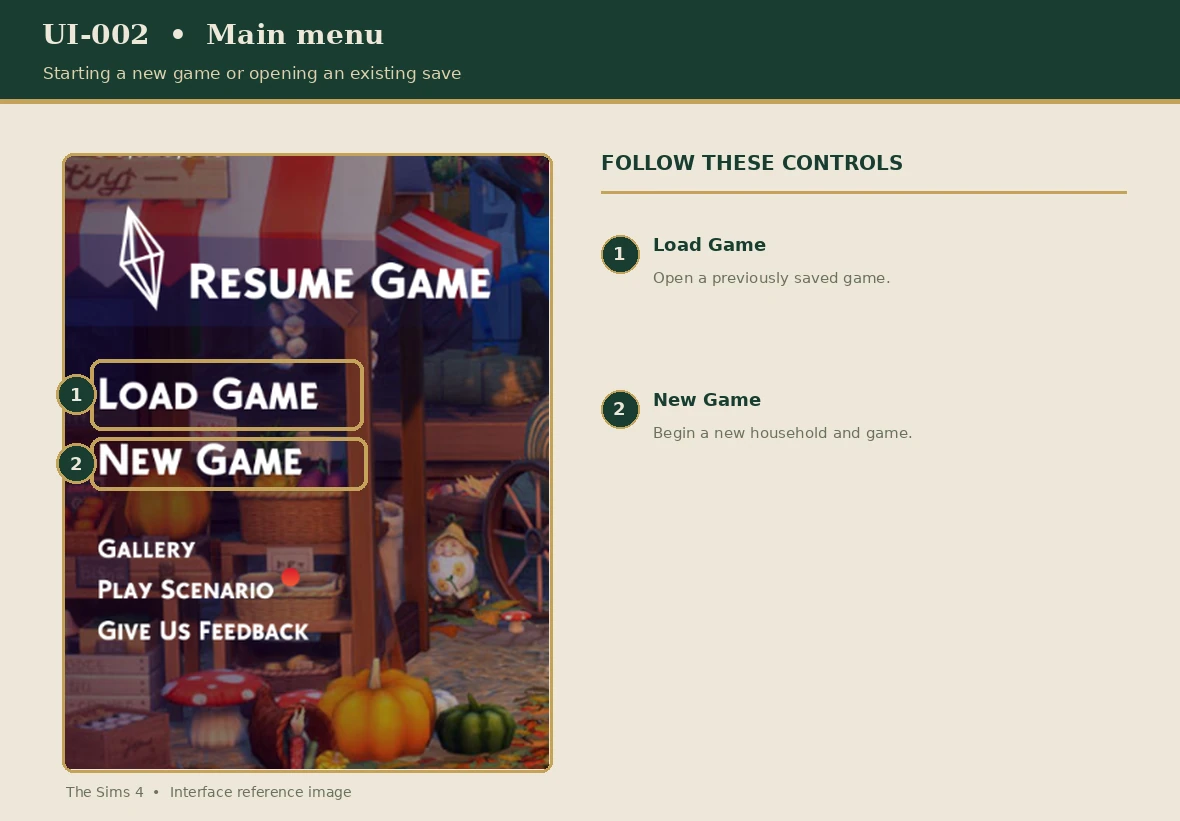
From the main menu, you can begin a new game or return to an existing save. The exact menu layout may change with game updates.
- Begin a new game.
- Create your first Sim.
- Choose your Sim's personality and aspiration.
- Finish creating your household.
- Choose a world and an affordable home.
- Enter Live Mode and begin exploring.
Try giving your Sim a meal, meeting a neighbor, or exploring Build Mode. Save your game regularly as you play.
PART FIVE
Your First-Session Checklist
Use these simple goals to become comfortable with your new game.
- Explore the main menu.
- Create a Sim or household.
- Choose a starter home.
- Learn how to pause and resume gameplay.
- Find your Sim's Needs panel.
- Try one interaction with another Sim.
- Explore Build Mode.
- Save your game.
There is no need to learn everything in one session. Begin with the Base Game, discover the features you enjoy, and develop your own play style.
PART SIX
Having Trouble?
If the game will not download, install, or launch, begin with these basic checks:
- Confirm your device is compatible.
- Check available storage space.
- Check your internet connection.
- Make sure your EA app is updated.
- Check for pending game updates.
- Verify that you are signed in to the correct account.
Troubleshooting steps can differ depending on the platform and issue. Consult official support for more specific instructions.
EA App Installation Help ↗Official Resources
For current installation help, system requirements, and game updates, visit Electronic Arts' official support resources linked above.
Game interfaces, system requirements, and installation procedures may change with updates. Always consult EA's latest support documentation.
Research reviewed: November 2026.
YOUR ADVENTURE AWAITS
Ready for Your First Sim Story?
Now that your game is ready, continue with our beginner handbook to explore Create-a-Sim, building, gameplay, and everyday Sim life.
← Return to the Beginner's Guide